How to create a bank account as a work pass/dependant's pass holder in Singapore
How to create a bank account as a work pass /dependant’s pass holder in Singapore
If you recently relocated to Singapore to work, you will need a Singapore bank account to receive your salary. In this article, I’ll explain how to open a bank account in Singapore with one of the country’s most well-known banks, DBS.
This article applies to both the pass holders and their dependents.
Pre-conditions
To open a bank account, you must meet the requirements outlined below.
- You should have a SingPass account, and the SingPass mobile app must be installed and configured.
- You should have your passport with you.
If you do not already have a SingPass account, go to any SingPass counter in a community centre near you and create one. I strongly advise you to complete it as soon as you receive your work pass. It will make your life in Singapore easier.
You can find the SingPass counter locations from this link.
Verification
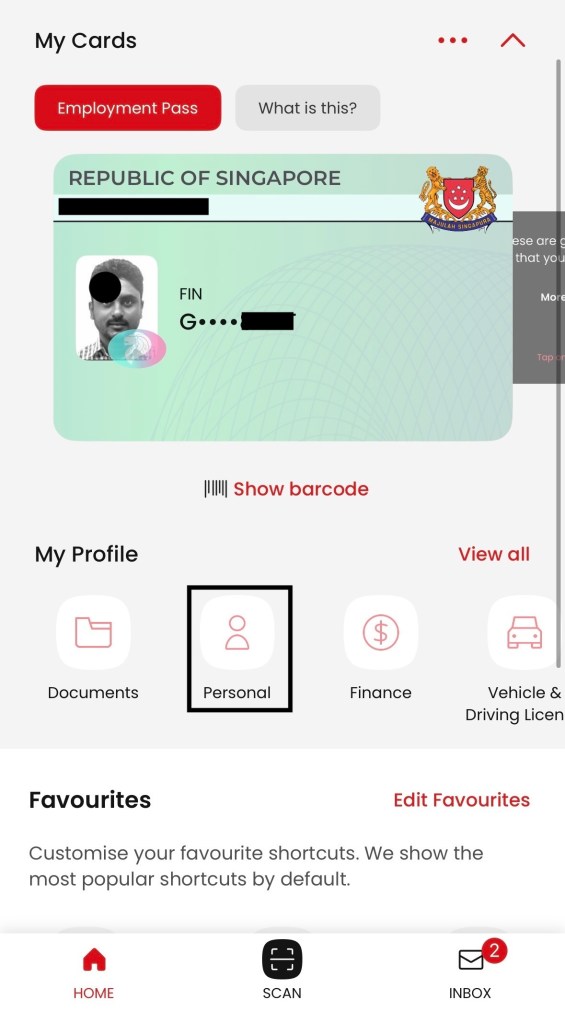
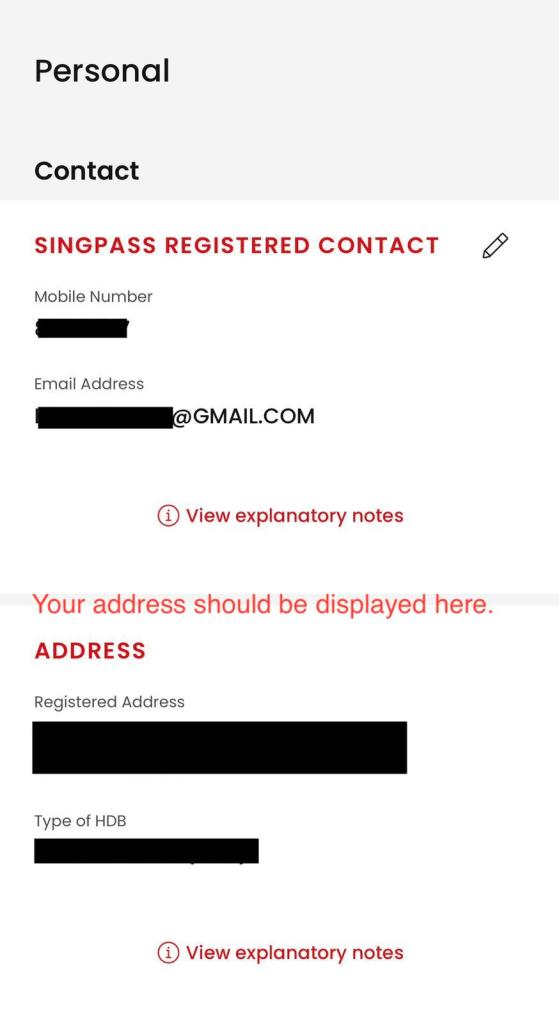
Click on the “Personal” icon on the SingPass app to verify your correct residential address. The address you provided to your company to issue the work pass should be displayed there.
STEP 01
Download the DBS mobile application from the App Store or Google Play Store.
You can also download the DBS digibank mobile application by scanning the QR code below.
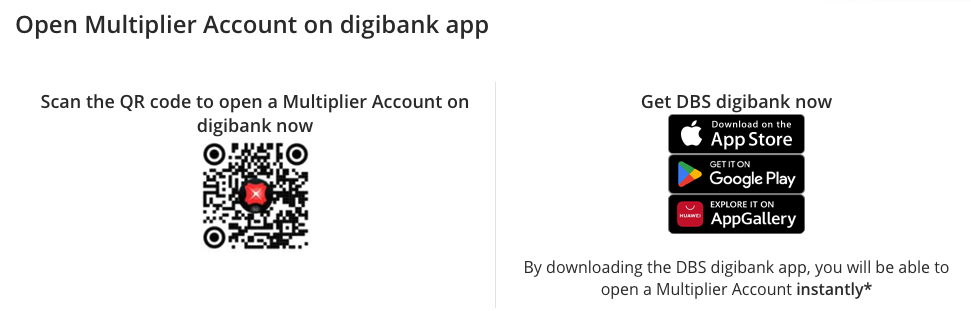
I’ve included a link to the webpage where I took the screenshot. To navigate, click on the image.
STEP 02
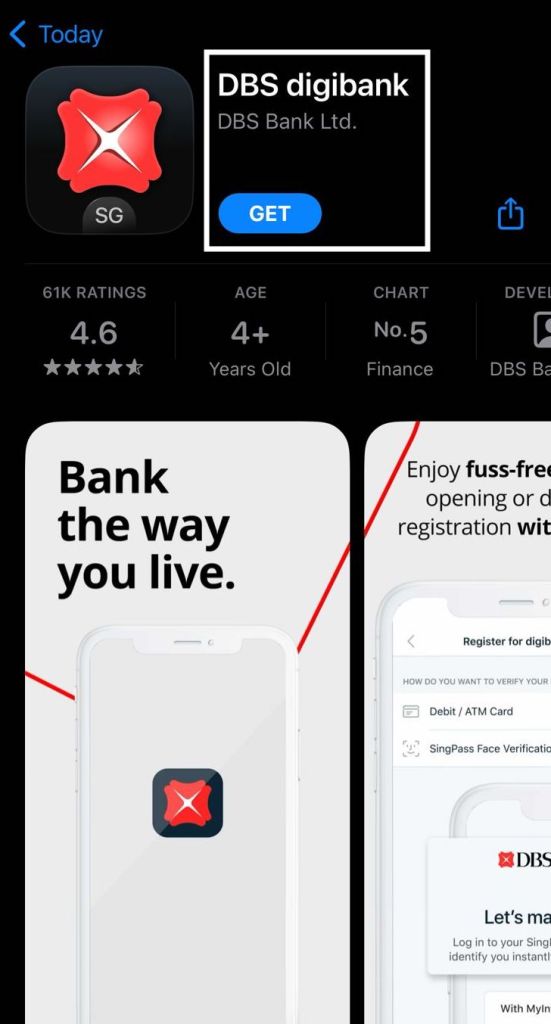
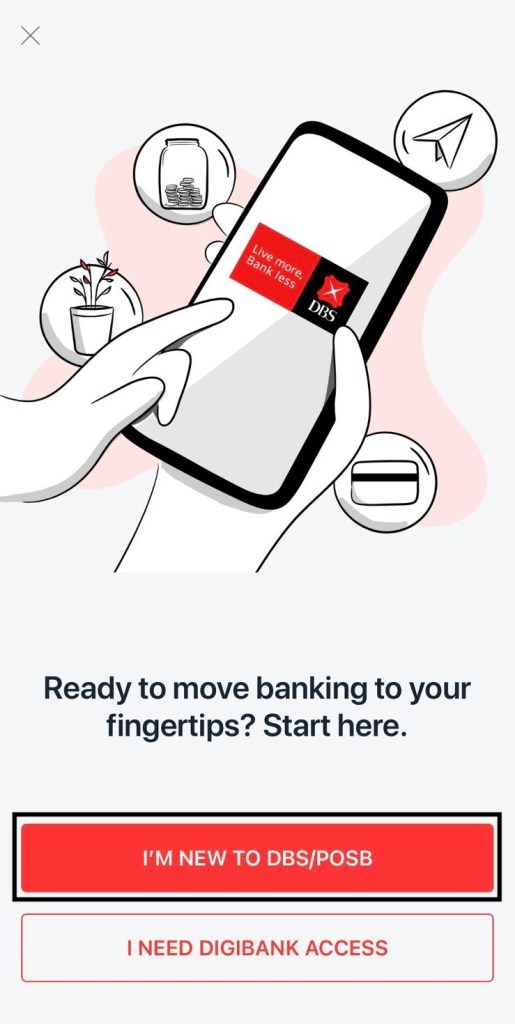
Scanning the above QR code will bring up the DBS digibank app, as shown below (screenshot from App store). Once you have downloaded the app, click “SIGN UP FOR DIGIBANK” and click on “I’M NEW TO DBS/POSB”

STEP 03
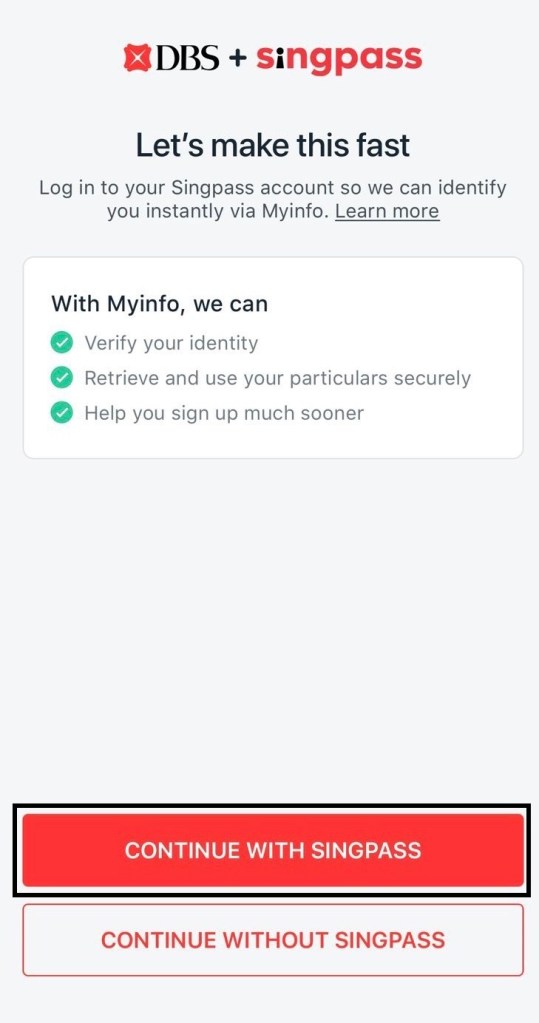
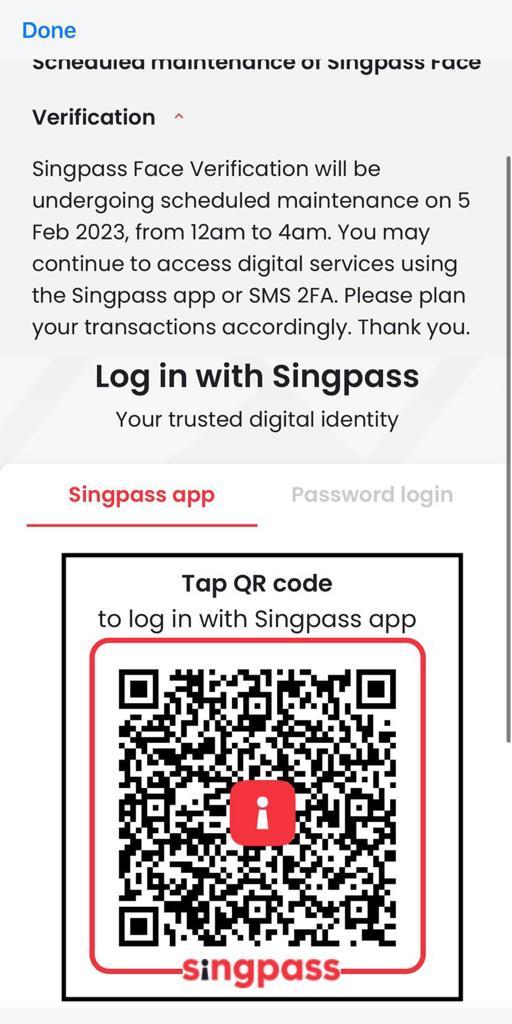
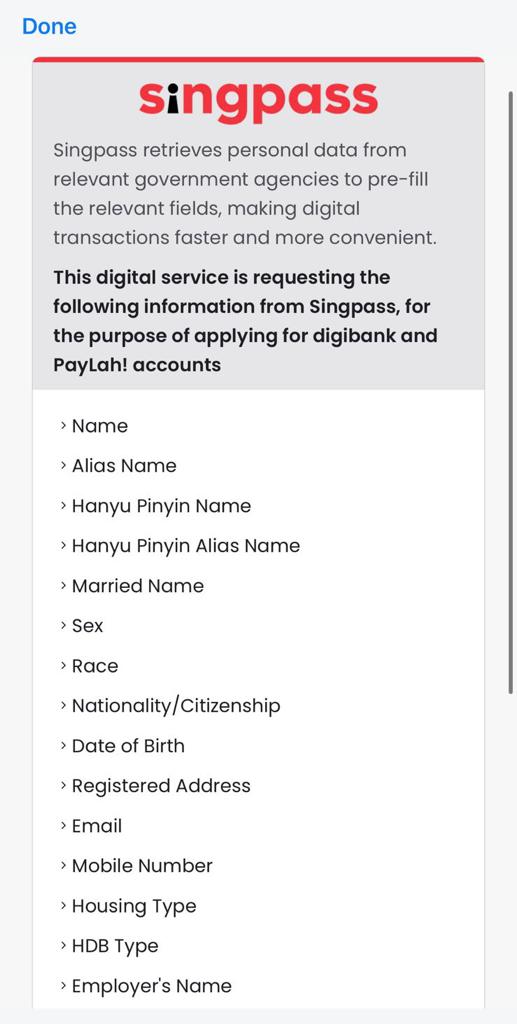
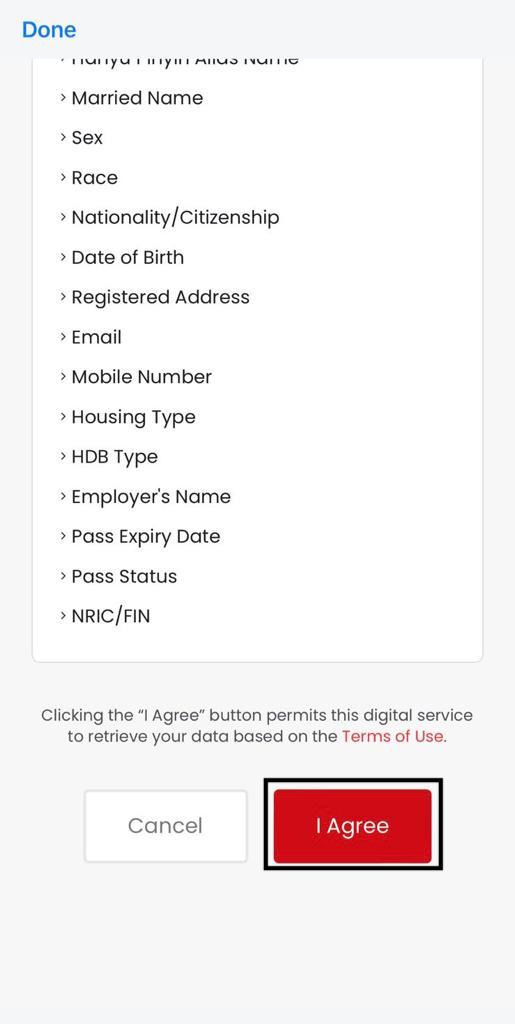
Because we’re creating a bank account using SingPass, select the “CONTINUE WITH SINGPASS” option. Remember that you must have a SingPass account and the SingPass mobile app installed on your device. Then you must log in with SingPass and agree to DBS to access your information from SingPass.
STEP 04
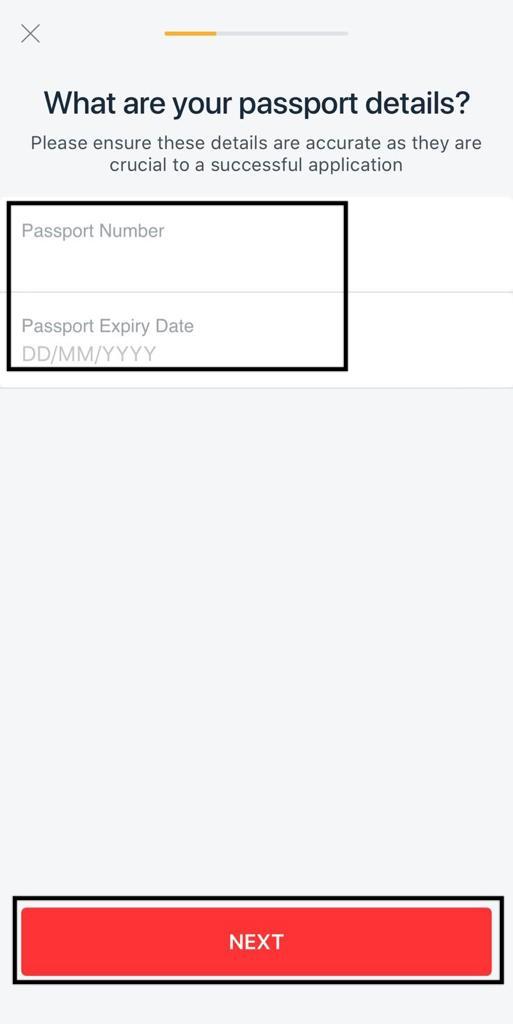
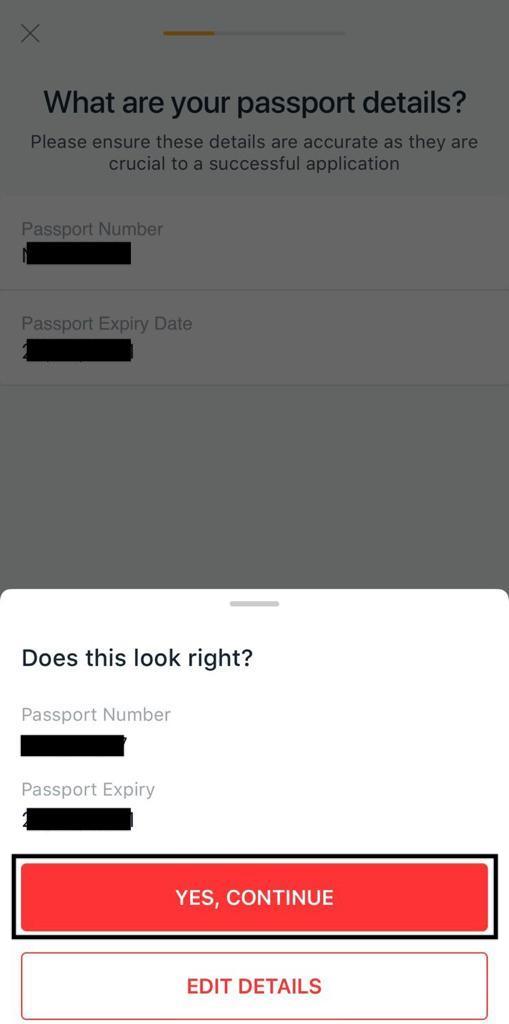
Enter the passport number and the expiry date of the passport and click on “NEXT”. Then click on “YES, CONTINUE.”
STEP 05
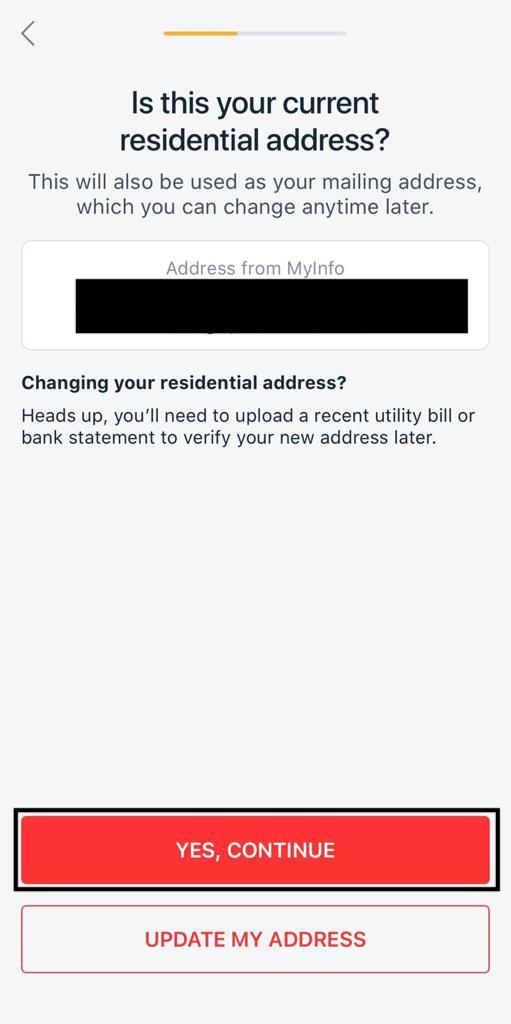
Confirm the residential address. The address in SingPass and your actual address are the same; click on “YES, CONTINUE.” Then click on “OK, CONTINUE APPLICATION.”
You can update the address if you are no longer staying in the address DBS retrieved from the SingPass. However, you must submit a letter or a bill to prove your new address.
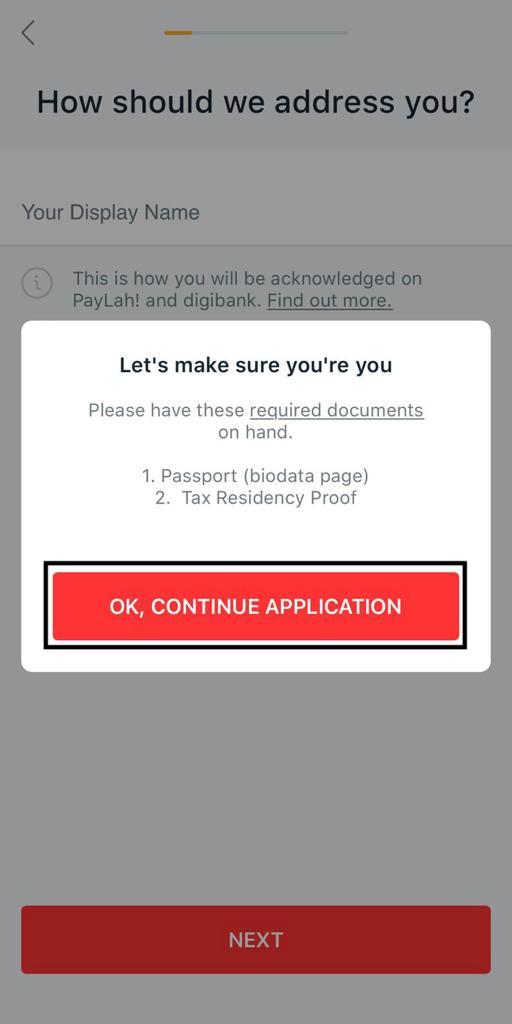
STEP 06
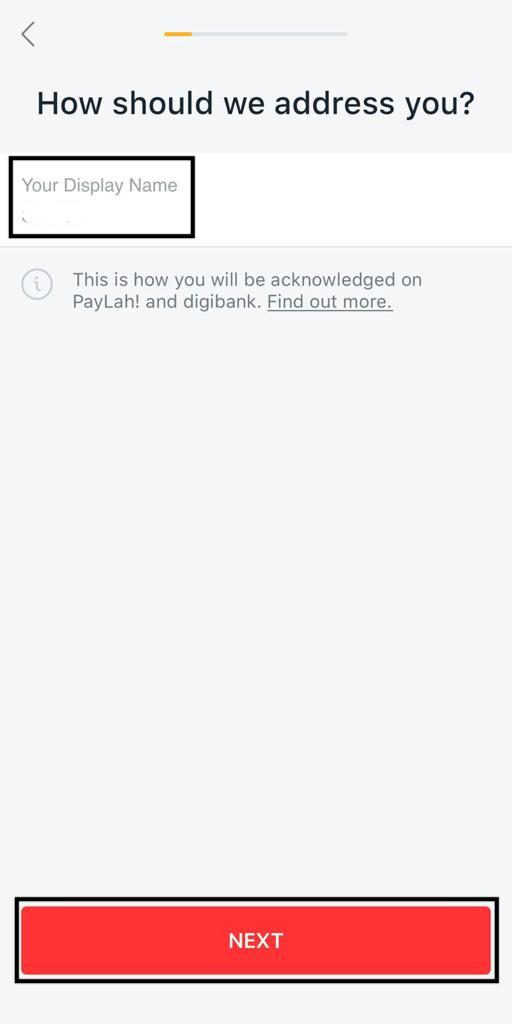
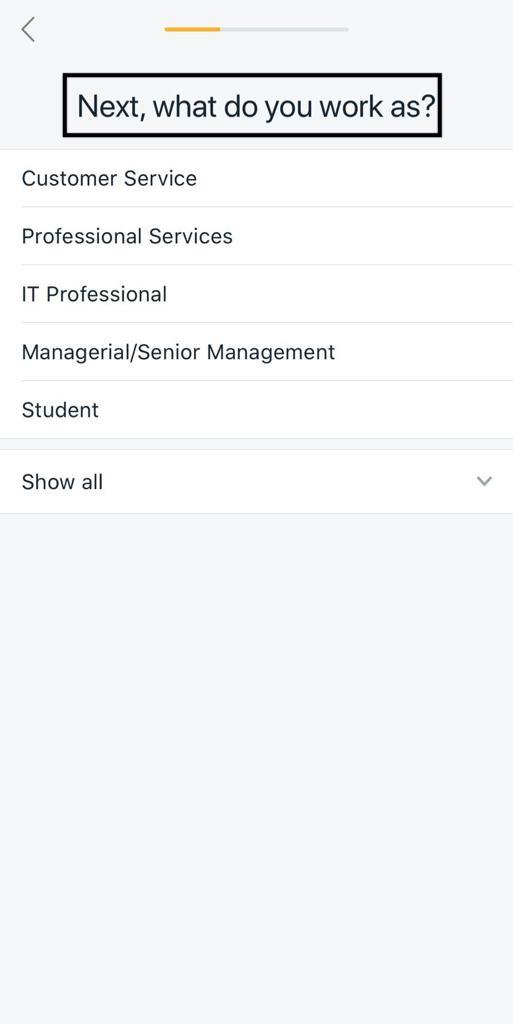
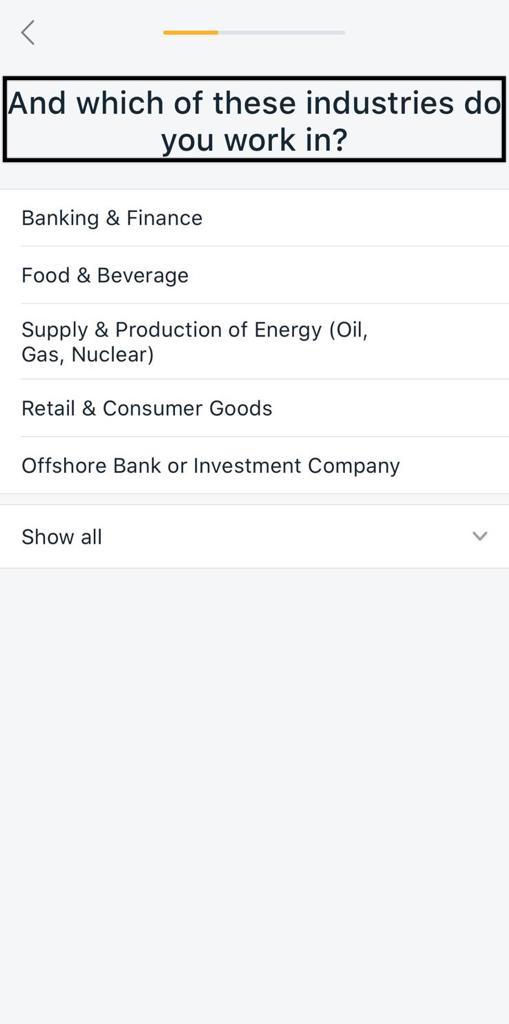
Provide a short name for the bank to address you. Then choose your job and the most appropriate industry for you.
STEP 07
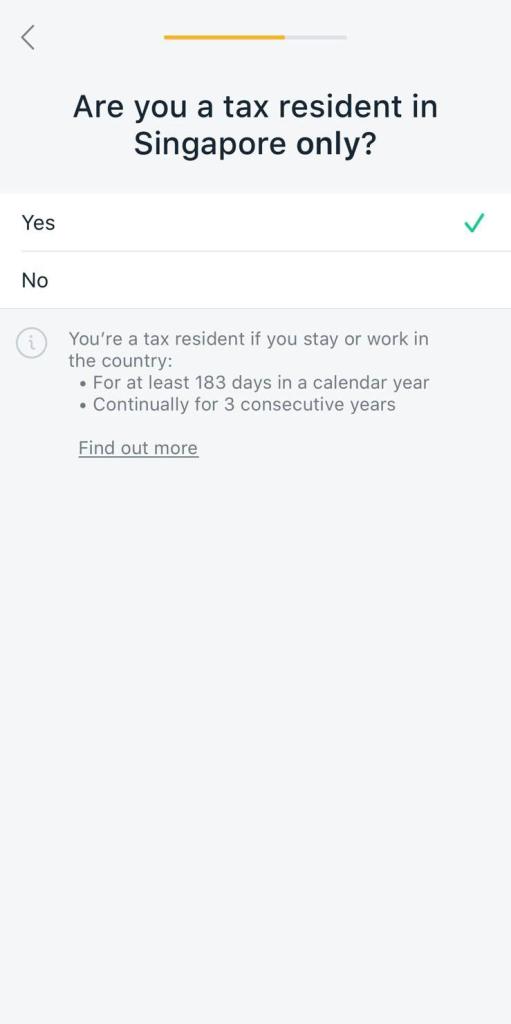
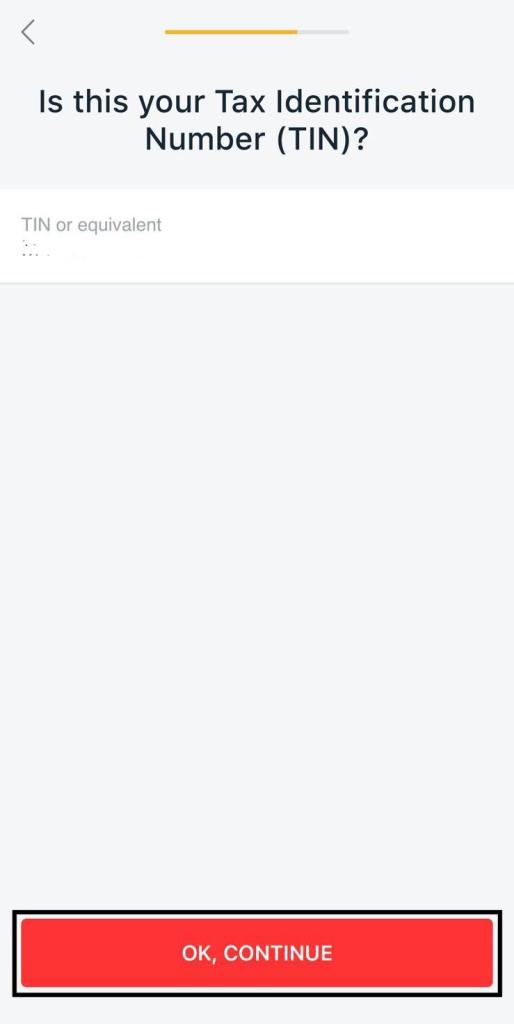
Confirm your tax residency. If yes, confirm the FIN number as well. Your FIN number will be the TIN in Singapore. Then click on “OK, CONTINUE.”
Note for Sri Lankans: Sri Lankan needs to select “Yes” from the options below, as Sri Lankans do not need to pay taxes in Sri Lanka when earning outside of Sri Lanka.
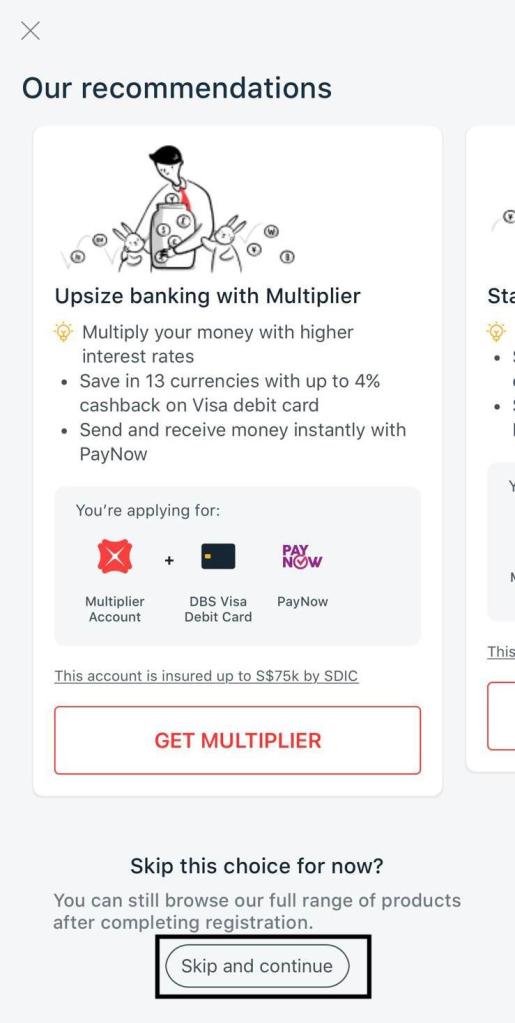
Also, you can skip the account type for now. We will setup later.
STEP 08
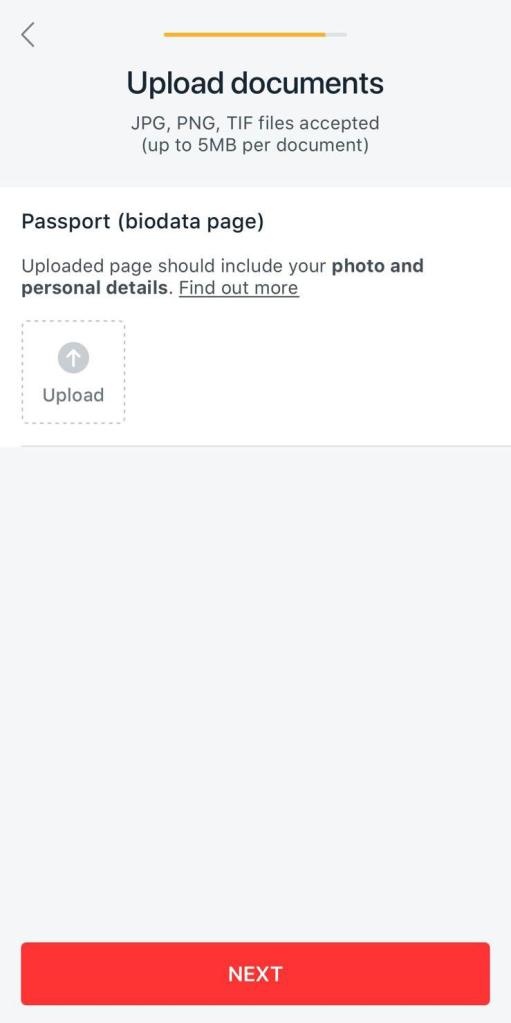
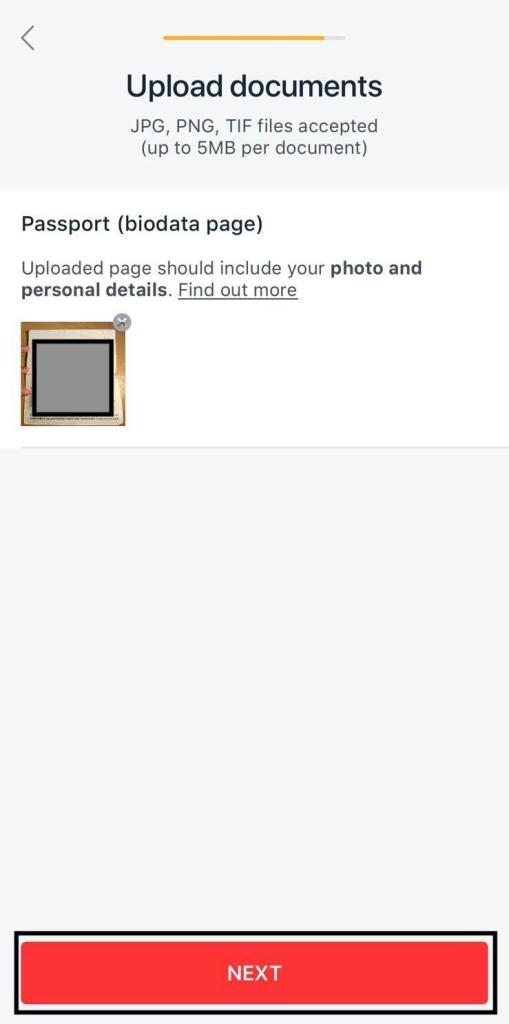
Upload the bio-data page of your passport and click “NEXT.”
STEP 09
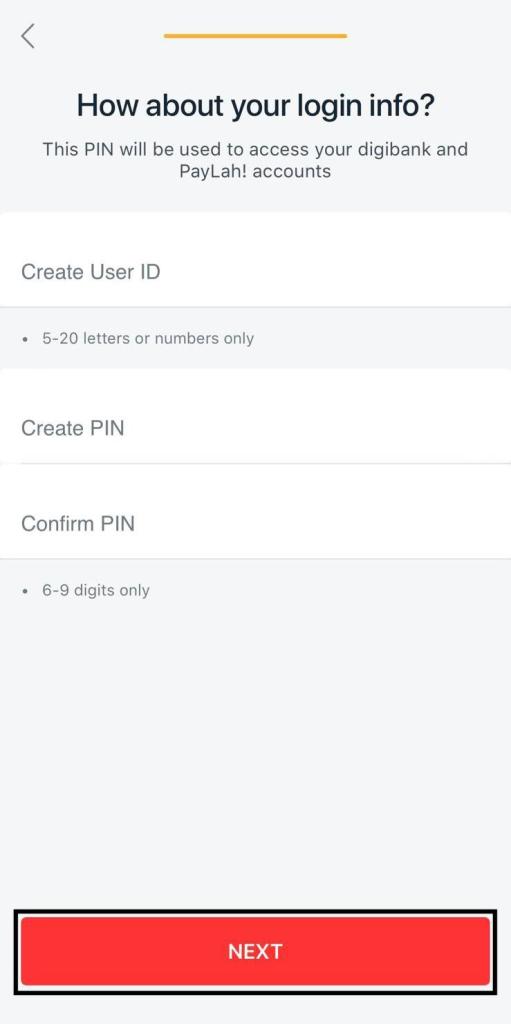
Set a username and a password for your digibank account and click “NEXT.”
STEP 10
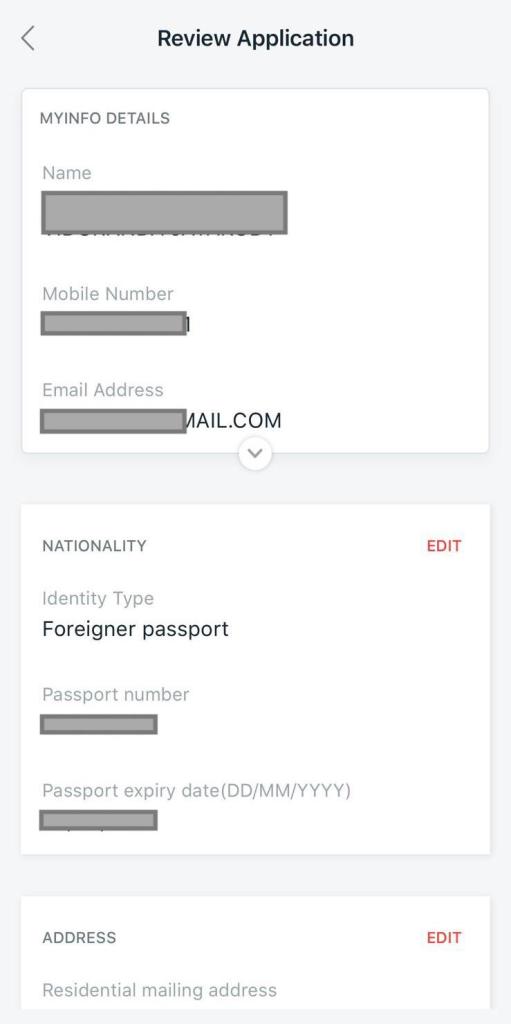
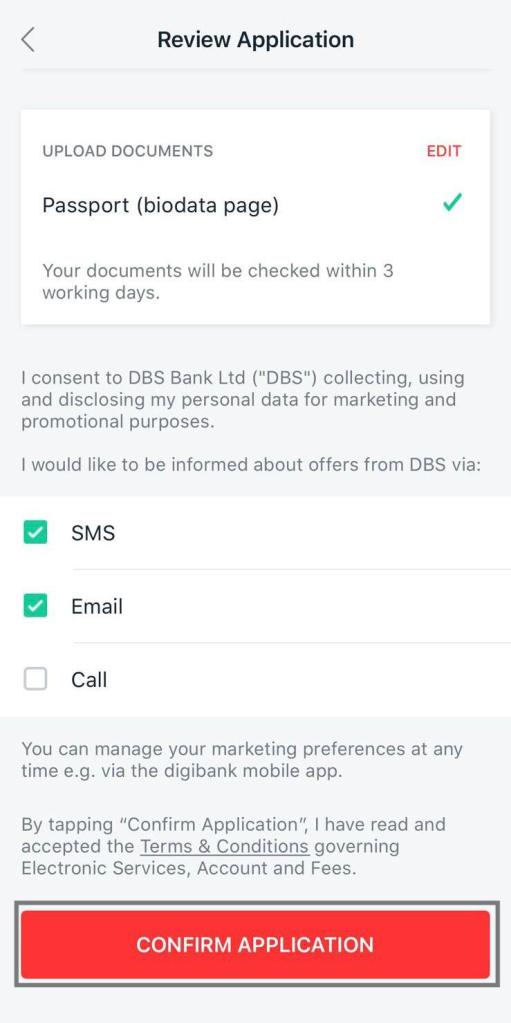
Review the application, and if everything is OK, click on “CONFIRM APPLICATION” to confirm.
STEP 11
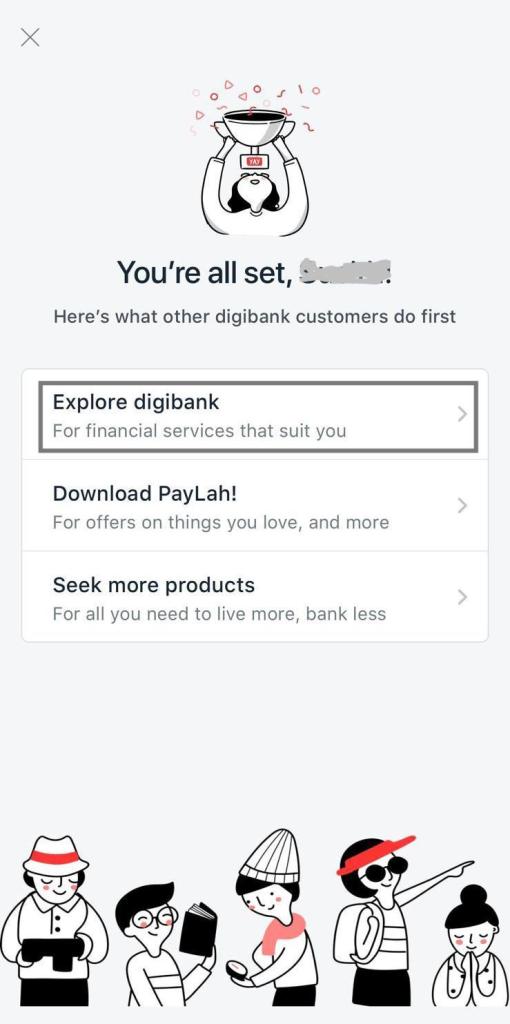
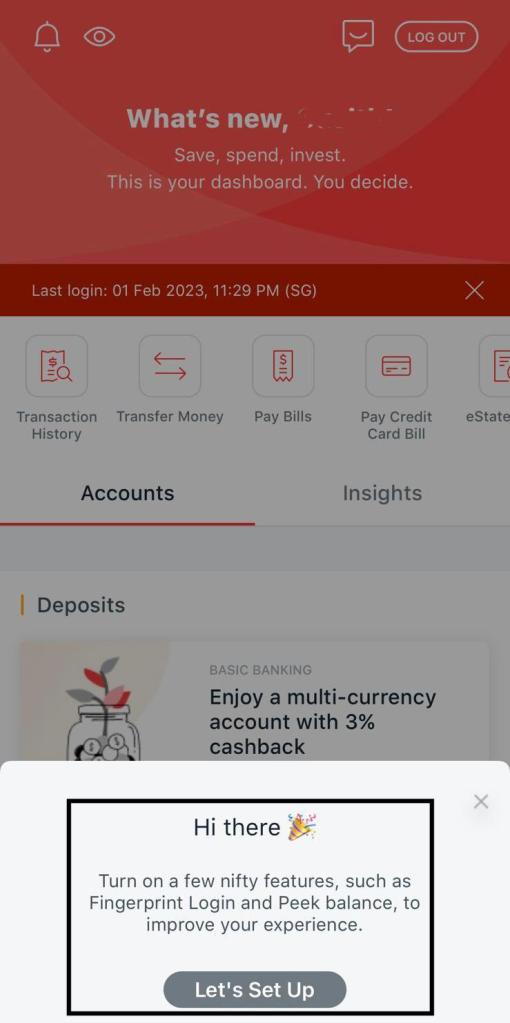
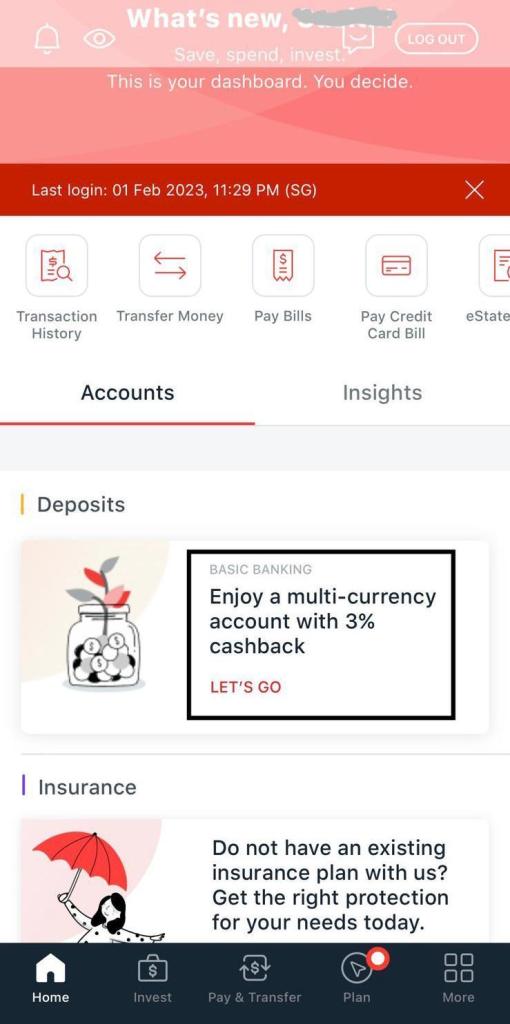
Click on the “Explore digibank” option, click on “Let’s Set Up.” and click on “LET’S GO.”
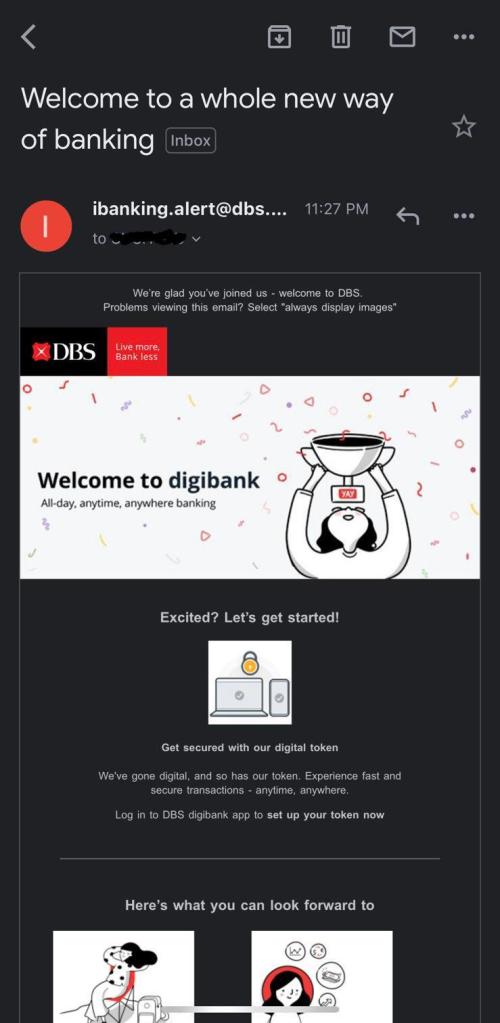
Meanwhile, you will receive an email as well.
STEP 12
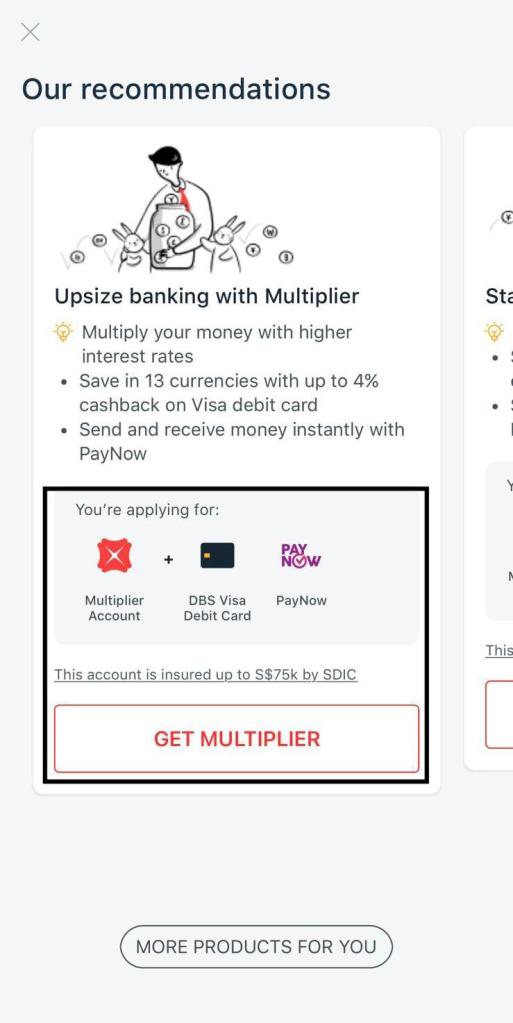
Click on “GET MULTIPLIER”
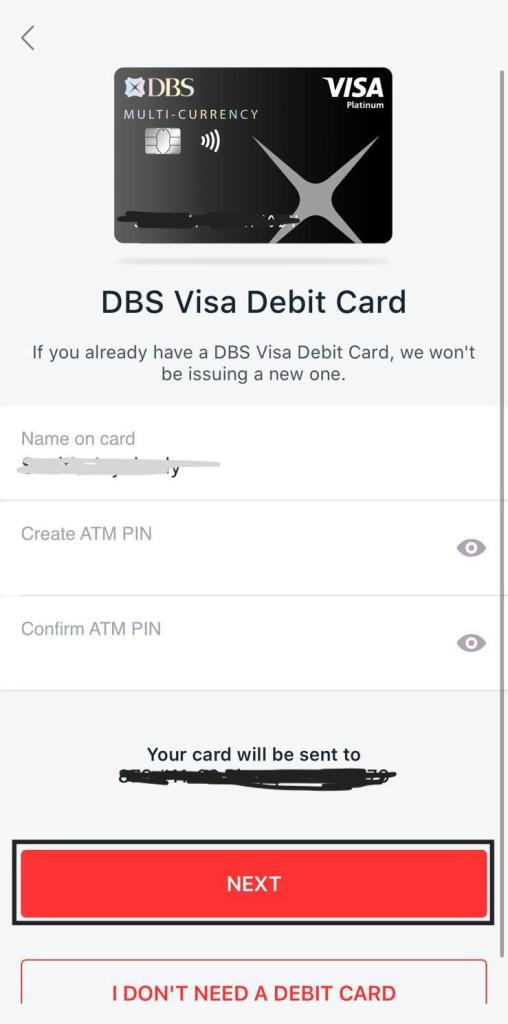
Then, enter a name for your debit card and an ATM pin. Please keep this in mind for the future, and you can change the ATM pin if necessary.
Also, please go through this link’s terms and conditions for the DBS multiplier account.
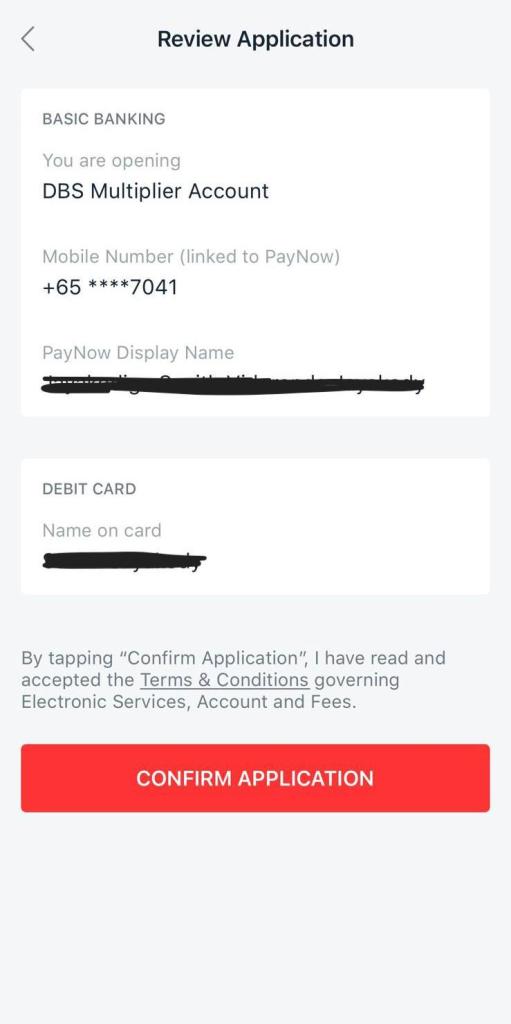
Lastly, review and confirm the application.
STEP 13
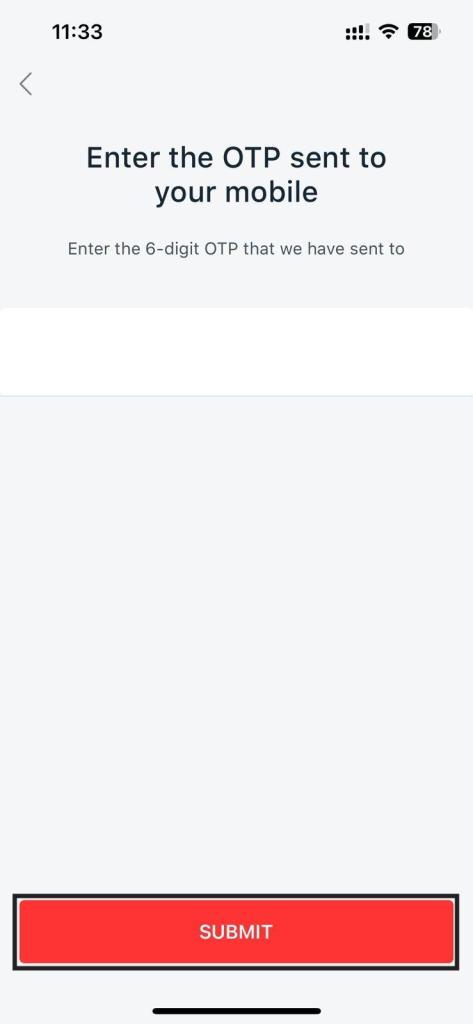
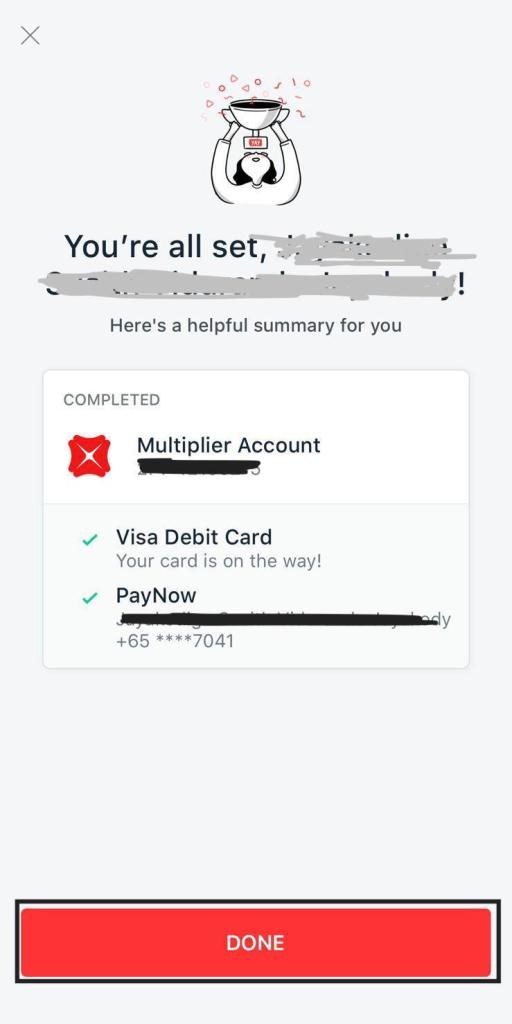
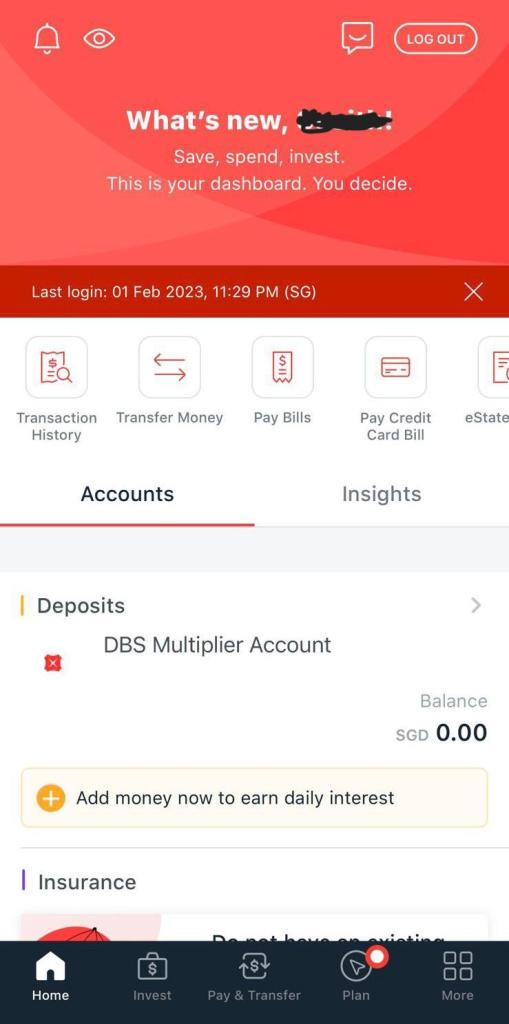
Bank will send an OTP to your mobile number. Once you enter the OTP, your account is ready to use. You will see your account details.
Read this link to understand PayNow if you have never heard about it.
That’s it for today. Thanks for reading. I hope this article will help you to create your first bank account in Singapore.
If any of your friends recently relocated or are about to relocate to Singapore, consider sharing this with them. This will make their life a bit easier.
If you wish to support this website, you can contribute via Ko-fi.
Other related articles
Rated 5 out of 5 12th February 2023 Anonymous Rated 5 out of 5 12th February 2023 Anonymous Rated 5 out of 5 5th February 2023 Navo